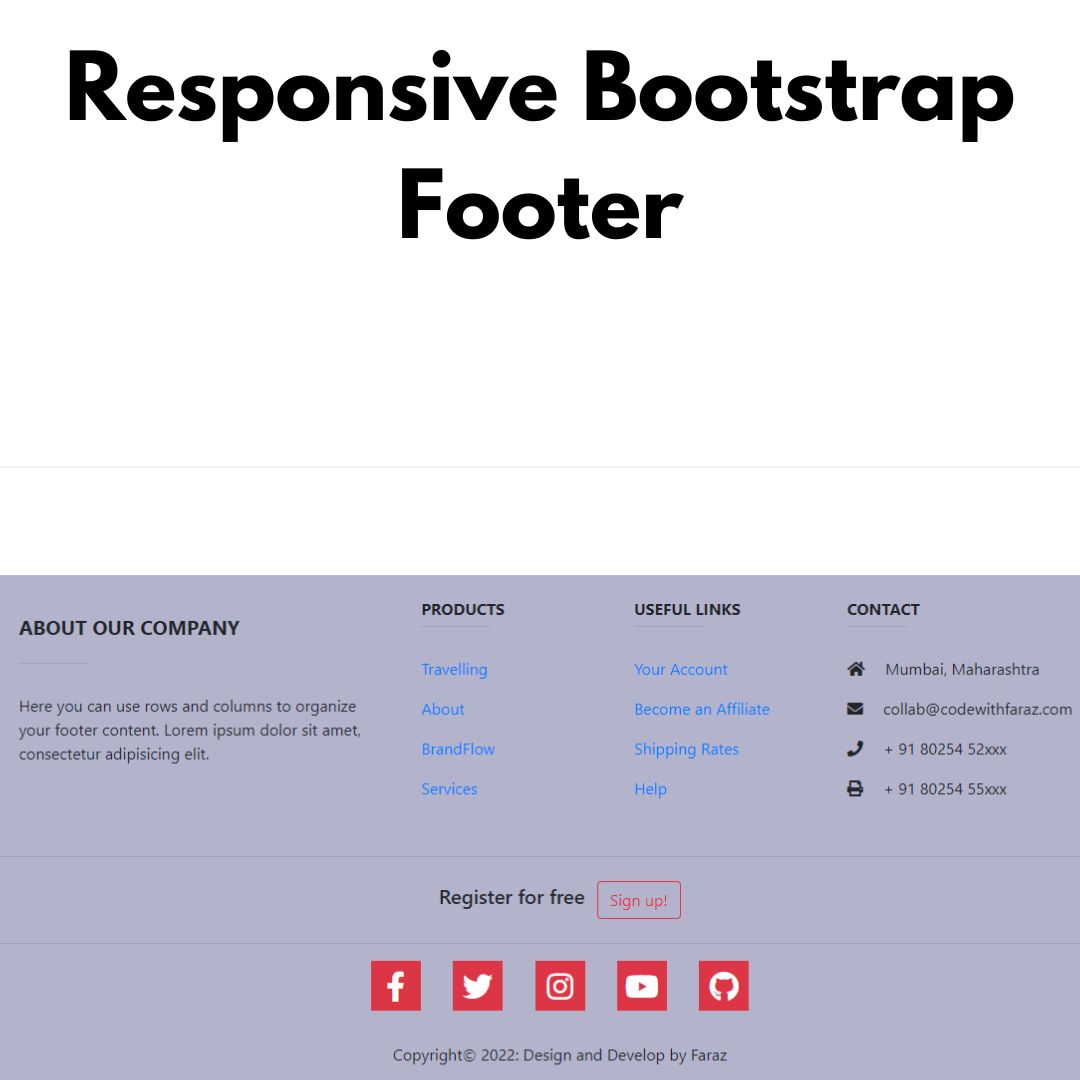
Learn to build a beautiful, responsive Tailwind navbar from scratch. This easy tutorial includes a search bar, dropdown menu, and a light/dark mode toggle.


Table of Contents
A good navigation bar (or navbar) is like a friendly guide for your website visitors. It helps them find what they're looking for easily. If you're using Tailwind CSS, you're in luck! Building a beautiful, modern, and responsive navbar is super simple.
In this guide, we'll walk you through creating a complete Tailwind navbar. It will have everything you need: a logo, navigation links, a dropdown menu, a search bar, and even a cool light/dark mode switch. Let's get started!
What You'll Need (Prerequisites)
- Basic HTML and CSS knowledge: You should know how to structure a webpage.
- A project with Tailwind CSS installed: Your project must be set up to use Tailwind's utility classes.
Source Code
Step 1 (HTML Code):
First, we'll start with HTML (HyperText Markup Language). This is the skeleton of your website. It's where we'll create the layout and decide where everything goes. We'll use Tailwind CSS classes directly in our HTML to handle most of the design, which makes styling fast and easy. Let's break down the HTML code step by step:
1. DOCTYPE and HTML setup
<!DOCTYPE html>
<html lang="en">- Declares this document as an HTML5 document.
- lang="en" specifies that the primary language is English.
2. Head Section
<head>
    <meta charset="UTF-8">
    <meta name="viewport" content="width=device-width, initial-scale=1.0">
<title>CodeWithFaraz - Responsive Navbar</title>- meta charset="UTF-8" ensures the document can display all characters properly.
- meta name="viewport" makes the page responsive for mobile devices.
<title>sets the page title.
3. Including Tailwind CSS
<script src="https://cdn.tailwindcss.com"></script>- Loads Tailwind CSS, a utility-first CSS framework for quick styling.
4. Google Fonts
<link href="https://fonts.googleapis.com/css2?family=Inter:wght@300;400;500;600;700;900&display=swap" rel="stylesheet">- Imports the Inter font for clean typography.
5. Feather Icons
<script src="https://unpkg.com/feather-icons"></script>- Loads Feather icons, a set of lightweight icons used in the navbar (search, chevron, etc.).
6. Tailwind Dark Mode Configuration
<script>
    tailwind.config = {
      darkMode: 'class',
    }
</script>- Enables dark mode, which can be toggled using a CSS class (class="dark").
7. Custom Styles
<link rel="stylesheet" href="styles.css">- Links a separate CSS file for additional custom styling.
8. Body
<body class="text-gray-800 dark:text-gray-200">- Sets default text color in light and dark modes.
9. Header & Navigation Bar
<header id="header" class="w-full sticky top-0 left-0 p-4 md:px-6 md:py-4 z-50 transition-all duration-300">
<nav class="container mx-auto flex justify-between items-center glass-effect rounded-full px-6 py-3">- sticky top-0: navbar stays at the top while scrolling.
- flex justify-between items-center: layout with space between logo and menu items.
- glass-effect rounded-full: Applies a semi-transparent blurred background (defined in CSS).
10. Logo
<a href="#" class="text-2xl font-bold tracking-wider text-gray-900 dark:text-white uppercase">CodeWithFaraz</a>- Large, bold text as the website logo.
- Adapts color for light/dark mode.
11. Desktop Menu Items
<div class="hidden md:flex items-center space-x-8 text-sm font-medium text-gray-600 dark:text-gray-300">
    <a href="#">Features</a>
    <div class="dropdown">...</div>
    <a href="#">Pricing</a>
    <a href="#">About Us</a>
</div>- Visible only on medium (md) screens and above.
- Includes dropdown menu for “Solutions” with sub-links.
- Menu items have hover effects and adapt to dark mode.
12. Search Bar
<div class="relative">
    <input type="text" placeholder="Search..." class="search-input ...">
    <i data-feather="search" class="absolute ..."></i>
</div>- Positioned icon inside the input field.
- Expands width when focused using Tailwind focus:w-56.
13. Theme Toggle Button
<button id="theme-toggle">...</button>- Switches between light and dark themes.
- Includes SVG icons for sun/moon.
- Uses JavaScript to toggle dark mode.
14. Login Button
<a href="#" class="login-btn ...">Login</a>- Stylized button for logging in.
- Appears in desktop view next to the search and theme toggle.
15. Mobile Menu Button
<button id="mobile-menu-button" class="lg:hidden ...">
    <svg id="menu-icon-open">...</svg>
    <svg id="menu-icon-close" class="hidden">...</svg>
</button>- Hamburger menu for small screens (lg:hidden hides it on large screens).
- Switches icon between open/close states.
16. Mobile Menu
<div id="mobile-menu" class="lg:hidden mt-2">...</div>- Collapsible menu for mobile.
- Includes search, navigation links, and login button.
- Styled for dark/light mode.
17. Main Content (Placeholder)
<main class="container mx-auto p-8 mt-10">
    <h1 class="text-5xl font-bold mb-6 text-gray-900 dark:text-white">Navigation with Theme Toggle</h1>
    <p>...</p>
</main>- Placeholder content to demonstrate sticky navbar while scrolling.
- Height set to 200vh for scroll testing.
18. JavaScript
<script src="script.js"></script>- External JS file contains:
- Mobile menu toggle
- Theme switch functionality
- Dropdown menu toggle

Step 2 (CSS Code):
Next, let's move on to CSS (Cascading Style Sheets). While Tailwind CSS is amazing and covers most of our design needs, sometimes you need a few custom styles for unique elements. That's where a separate CSS file comes in handy. Let's break down the CSS code step by step:
1. Global Body Styles
body {
  font-family: 'Inter', sans-serif;
  overflow-x: hidden;
  transition: background-color 0.5s ease, color 0.5s ease;
}- Sets Inter font for the whole page.
- Prevents horizontal scrolling with overflow-x: hidden.
- Smoothly transitions background and text color (used for theme switching).
2. Light Mode Theme
body {
  background-color: #f4f4f7;
  background-image: linear-gradient(rgba(0, 0, 0, 0.03) 1px, transparent 1px),
                    linear-gradient(90deg, rgba(0, 0, 0, 0.03) 1px, transparent 1px);
  background-size: 30px 30px;
}- Sets a light gray background.
- Adds a subtle grid pattern using two linear gradients.
3. Glass Effect (Glassmorphism)
.glass-effect {
  background: rgba(255, 255, 255, 0.3);
  backdrop-filter: blur(8px);
  -webkit-backdrop-filter: blur(8px);
  border: 1px solid rgba(0, 0, 0, 0.1);
  box-shadow: 0 8px 32px 0 rgba(0, 0, 0, 0.1);
  transition: all 0.3s ease-in-out;
}- Semi-transparent background (rgba) + blur effect.
- Rounded, subtle shadow.
- Smooth transition for hover or scroll changes.
.header-scrolled .glass-effect {
  background: rgba(255, 255, 255, 0.7);
  border-color: rgba(0, 0, 0, 0.15);
  backdrop-filter: blur(15px);
}- When user scrolls (header-scrolled class added via JS):
- Glass background becomes more opaque.
- Blur increases for better readability.
4. Mobile Menu Glass
.mobile-menu-glass {
  background: rgba(244, 244, 247, 0.95);
  border: 1px solid rgba(0, 0, 0, 0.1);
}- Mobile menu has a semi-transparent light background.
5. Login Button
.login-btn {
  background-color: #0d1a2e;
}
.login-btn:hover {
  transform: scale(1.05);
  background-color: #1a3258;
}- Dark blue button.
- Slight scale-up effect on hover for interactivity.
6. Dropdown Menu
.dropdown-menu {
  background: rgba(255, 255, 255, 0.98);
  border: 1px solid rgba(0, 0, 0, 0.1);
}- Light semi-transparent menu with border.
7. Search Input
.search-input {
  background: rgba(0, 0, 0, 0.03);
  border: 1px solid rgba(0, 0, 0, 0.05);
}- Slightly shaded input with a subtle border.
8. Dark Mode
All styles prefixed with .dark apply when the <html> or <body> has a .dark class.
.dark body { background-color: #0d0f1a; ... }
.dark .glass-effect { background: rgba(10, 12, 22, 0.2); ... }
.dark .header-scrolled .glass-effect { background: rgba(10, 12, 22, 0.7); ... }
.dark .mobile-menu-glass { background: rgba(13, 15, 26, 0.95); ... }
.dark .login-btn { background: linear-gradient(90deg, #00f2fe, #4facfe); ... }
.dark .login-btn:hover { box-shadow: glowing effect on hover }
.dark .dropdown-menu { background: rgba(13, 15, 26, 0.98); ... }
.dark .search-input { background: rgba(0, 255, 255, 0.05); ... }- Dark theme uses dark backgrounds, cyan borders, glowing gradient login button.
- Hover effects enhanced for better visibility.
9. Dropdown Behavior
.dropdown {
  position: relative;
  padding-bottom: 1rem;
  margin-bottom: -1rem;
}

.dropdown-menu {
  display: none;
  position: absolute;
  top: 100%;
  left: 50%;
  transform: translateX(-50%) translateY(10px);
  opacity: 0;
  transition: opacity 0.3s, transform 0.3s;
  pointer-events: none;
  backdrop-filter: blur(20px);
}

.dropdown:hover .dropdown-menu {
  display: block;
  opacity: 1;
  transform: translateX(-50%) translateY(0);
  pointer-events: auto;
}- Dropdown menus are hidden by default.
- On hover:
- Menu appears.
- Smooth fade-in and slide-up animation using opacity and transform.
- backdrop-filter adds blur behind the menu.
10. Mobile Menu Animation
#mobile-menu {
  max-height: 0;
  overflow: hidden;
  transition: max-height 0.5s cubic-bezier(0, 1, 0, 1);
}
#mobile-menu.menu-open {
  max-height: 100vh;
  transition: max-height 1s ease-in-out;
}- Mobile menu collapses with max-height animation.
- .menu-open class triggers expansion.
11. Search Input Width Transition
.search-input {
  transition: width 0.4s ease-in-out;
}- Smoothly expands search input width when focused.
/* Custom CSS for styling */
body {
  font-family: 'Inter', sans-serif;
  overflow-x: hidden;
  transition: background-color 0.5s ease, color 0.5s ease;
}

/* --- Light Mode Default Theme --- */
body {
  background-color: #f4f4f7;
  background-image: linear-gradient(rgba(0, 0, 0, 0.03) 1px, transparent 1px),
    linear-gradient(90deg, rgba(0, 0, 0, 0.03) 1px, transparent 1px);
  background-size: 30px 30px;
}

.glass-effect {
  background: rgba(255, 255, 255, 0.3);
  backdrop-filter: blur(8px);
  -webkit-backdrop-filter: blur(8px);
  border: 1px solid rgba(0, 0, 0, 0.1);
  box-shadow: 0 8px 32px 0 rgba(0, 0, 0, 0.1);
  transition: all 0.3s ease-in-out;
}

.header-scrolled .glass-effect {
  background: rgba(255, 255, 255, 0.7);
  border-color: rgba(0, 0, 0, 0.15);
  backdrop-filter: blur(15px);
  -webkit-backdrop-filter: blur(15px);
}

.mobile-menu-glass {
  background: rgba(244, 244, 247, 0.95);
  border: 1px solid rgba(0, 0, 0, 0.1);
}

.login-btn {
  background-color: #0d1a2e;
}

.login-btn:hover {
  transform: scale(1.05);
  background-color: #1a3258;
}

.dropdown-menu {
  background: rgba(255, 255, 255, 0.98);
  border: 1px solid rgba(0, 0, 0, 0.1);
}

.search-input {
  background: rgba(0, 0, 0, 0.03);
  border: 1px solid rgba(0, 0, 0, 0.05);
}

/* --- Dark Mode Theme --- */
.dark body {
  background-color: #0d0f1a;
  background-image: linear-gradient(
      rgba(255, 255, 255, 0.03) 1px,
      transparent 1px
    ),
    linear-gradient(90deg, rgba(255, 255, 255, 0.03) 1px, transparent 1px);
}

.dark .glass-effect {
  background: rgba(10, 12, 22, 0.2);
  border: 1px solid rgba(0, 255, 255, 0.1);
  box-shadow: 0 8px 32px 0 rgba(0, 0, 0, 0.37);
}

.dark .header-scrolled .glass-effect {
  background: rgba(10, 12, 22, 0.7);
  border-color: rgba(0, 255, 255, 0.2);
}

.dark .mobile-menu-glass {
  background: rgba(13, 15, 26, 0.95);
  border: 1px solid rgba(0, 255, 255, 0.2);
}

.dark .login-btn {
  background: linear-gradient(90deg, #00f2fe, #4facfe);
  box-shadow: 0 0 10px #4facfe, 0 0 20px #00f2fe;
}

.dark .login-btn:hover {
  transform: scale(1.05);
  box-shadow: 0 0 15px #4facfe, 0 0 30px #00f2fe;
}

.dark .dropdown-menu {
  background: rgba(13, 15, 26, 0.98);
  border: 1px solid rgba(0, 255, 255, 0.2);
}

.dark .search-input {
  background: rgba(0, 255, 255, 0.05);
  border: 1px solid rgba(0, 255, 255, 0.1);
}

/* --- Common Styles --- */
.dropdown {
  position: relative;
  padding-bottom: 1rem;
  margin-bottom: -1rem;
}
.dropdown-menu {
  display: none;
  position: absolute;
  top: 100%;
  left: 50%;
  transform: translateX(-50%) translateY(10px);
  opacity: 0;
  transition: opacity 0.3s ease-out, transform 0.3s ease-out;
  pointer-events: none;
  backdrop-filter: blur(20px);
  -webkit-backdrop-filter: blur(20px);
}
.dropdown:hover .dropdown-menu {
  display: block;
  opacity: 1;
  transform: translateX(-50%) translateY(0);
  pointer-events: auto;
}

#mobile-menu {
  max-height: 0;
  overflow: hidden;
  transition: max-height 0.5s cubic-bezier(0, 1, 0, 1);
}
#mobile-menu.menu-open {
  max-height: 100vh;
  transition: max-height 1s ease-in-out;
}

.search-input {
  transition: width 0.4s ease-in-out;
}
Step 3 (JavaScript Code):
This is our final step! Here, we'll use JavaScript to add interactive features to our Navbar. Let's break down the JS code step by step:
1. Mobile Menu Toggle
const mobileMenuButton = document.getElementById('mobile-menu-button');
const mobileMenu = document.getElementById('mobile-menu');
const openIcon = document.getElementById('menu-icon-open');
const closeIcon = document.getElementById('menu-icon-close');

mobileMenuButton.addEventListener('click', () => {
  mobileMenu.classList.toggle('menu-open');
  openIcon.classList.toggle('hidden');
  closeIcon.classList.toggle('hidden');
});- Gets references to:
- The hamburger button (mobileMenuButton),
- The mobile menu container (mobileMenu),
- The open/close icons.
- On click:
- Toggles the class menu-open on the mobile menu to expand/collapse it.
- Switches the visibility of the hamburger icon and close icon using the hidden class.
2. Navbar Scroll Effect
const header = document.getElementById('header');
window.addEventListener('scroll', () => {
  if (window.scrollY > 50) {
    header.classList.add('header-scrolled');
  } else {
    header.classList.remove('header-scrolled');
  }
});- Gets the header element.
- On page scroll:
- Adds header-scrolled if the user scrolled down more than 50px.
- Removes it if near the top.
3. Dark/Light Mode Toggle
const themeToggleDarkIcon = document.getElementById('theme-toggle-dark-icon');
const themeToggleLightIcon = document.getElementById('theme-toggle-light-icon');
const themeToggleButton = document.getElementById('theme-toggle');- Gets references to dark/light icons and toggle button.
3.1 Apply Theme Function
function applyTheme(theme) {
  if (theme === 'dark') {
    document.documentElement.classList.add('dark');
    themeToggleLightIcon.classList.remove('hidden');
    themeToggleDarkIcon.classList.add('hidden');
    localStorage.setItem('theme', 'dark');
  } else {
    document.documentElement.classList.remove('dark');
    themeToggleDarkIcon.classList.remove('hidden');
    themeToggleLightIcon.classList.add('hidden');
    localStorage.setItem('theme', 'light');
  }
}- Adds or removes the dark class on
<html>to switch themes. - Shows the correct toggle icon.
- Saves the chosen theme in localStorage for persistence.
3.2 Check Saved Theme or System Preference
- const savedTheme = localStorage.getItem('theme');
- const systemPrefersDark = window.matchMedia('(prefers-color-scheme: dark)').matches;
if (savedTheme) {
  applyTheme(savedTheme);
} else if (systemPrefersDark) {
  applyTheme('dark');
} else {
  applyTheme('light');
}- If the user has previously selected a theme → use it.
- Otherwise, check the system’s preferred color scheme.
- Defaults to light if none.
3.3 Toggle Theme on Button Click
themeToggleButton.addEventListener('click', () => {
  const isDarkMode = document.documentElement.classList.contains('dark');
  applyTheme(isDarkMode ? 'light' : 'dark');
});- Toggles between dark and light mode when the user clicks the theme button.
4. Initialize Feather Icons
feather.replace();- Replaces all
<i data-feather="icon-name">elements with SVG icons. - Ensures the search, chevron, and menu icons render correctly.
// --- Mobile menu toggle ---
const mobileMenuButton = document.getElementById('mobile-menu-button');
const mobileMenu = document.getElementById('mobile-menu');
const openIcon = document.getElementById('menu-icon-open');
const closeIcon = document.getElementById('menu-icon-close');

mobileMenuButton.addEventListener('click', () => {
  mobileMenu.classList.toggle('menu-open');
  openIcon.classList.toggle('hidden');
  closeIcon.classList.toggle('hidden');
});

// --- Navbar scroll effect ---
const header = document.getElementById('header');
window.addEventListener('scroll', () => {
  if (window.scrollY > 50) {
    header.classList.add('header-scrolled');
  } else {
    header.classList.remove('header-scrolled');
  }
});

// --- Dark/Light Mode Toggle ---
const themeToggleDarkIcon = document.getElementById('theme-toggle-dark-icon');
const themeToggleLightIcon = document.getElementById('theme-toggle-light-icon');
const themeToggleButton = document.getElementById('theme-toggle');

function applyTheme(theme) {
  if (theme === 'dark') {
    document.documentElement.classList.add('dark');
    themeToggleLightIcon.classList.remove('hidden');
    themeToggleDarkIcon.classList.add('hidden');
    localStorage.setItem('theme', 'dark');
  } else {
    document.documentElement.classList.remove('dark');
    themeToggleDarkIcon.classList.remove('hidden');
    themeToggleLightIcon.classList.add('hidden');
    localStorage.setItem('theme', 'light');
  }
}

const savedTheme = localStorage.getItem('theme');
const systemPrefersDark = window.matchMedia(
  '(prefers-color-scheme: dark)'
).matches;

if (savedTheme) {
  applyTheme(savedTheme);
} else if (systemPrefersDark) {
  applyTheme('dark');
} else {
  applyTheme('light');
}

themeToggleButton.addEventListener('click', () => {
  const isDarkMode = document.documentElement.classList.contains('dark');
  applyTheme(isDarkMode ? 'light' : 'dark');
});

// --- Initialize Feather Icons ---
feather.replace();
Final Output:


Conclusion:
And that's it! You've successfully built a fully-featured, responsive navbar using Tailwind CSS. You have a professional navigation component with a search bar, a dropdown, a mobile menu, and a dark mode toggle.
The best part about Tailwind is how easy it is to customise. Feel free to change the colors, spacing, and fonts to match your brand.
That’s a wrap!
I hope you enjoyed this post. Now, with these examples, you can create your own amazing page.
Did you like it? Let me know in the comments below 🔥 and you can support me by buying me a coffee
And don’t forget to sign up to our email newsletter so you can get useful content like this sent right to your inbox!
Thanks!
Faraz 😊