Learn how to create Amazon Clone using HTML, CSS, and JavaScript. Step-by-step guide for beginners to build a simple e-commerce website clone.


Table of Contents
If you want to improve your web development skills, building real-world projects is the best way. One exciting project is creating an Amazon Clone using HTML, CSS, and JavaScript.
This project helps you learn how e-commerce websites are built. You will practice:
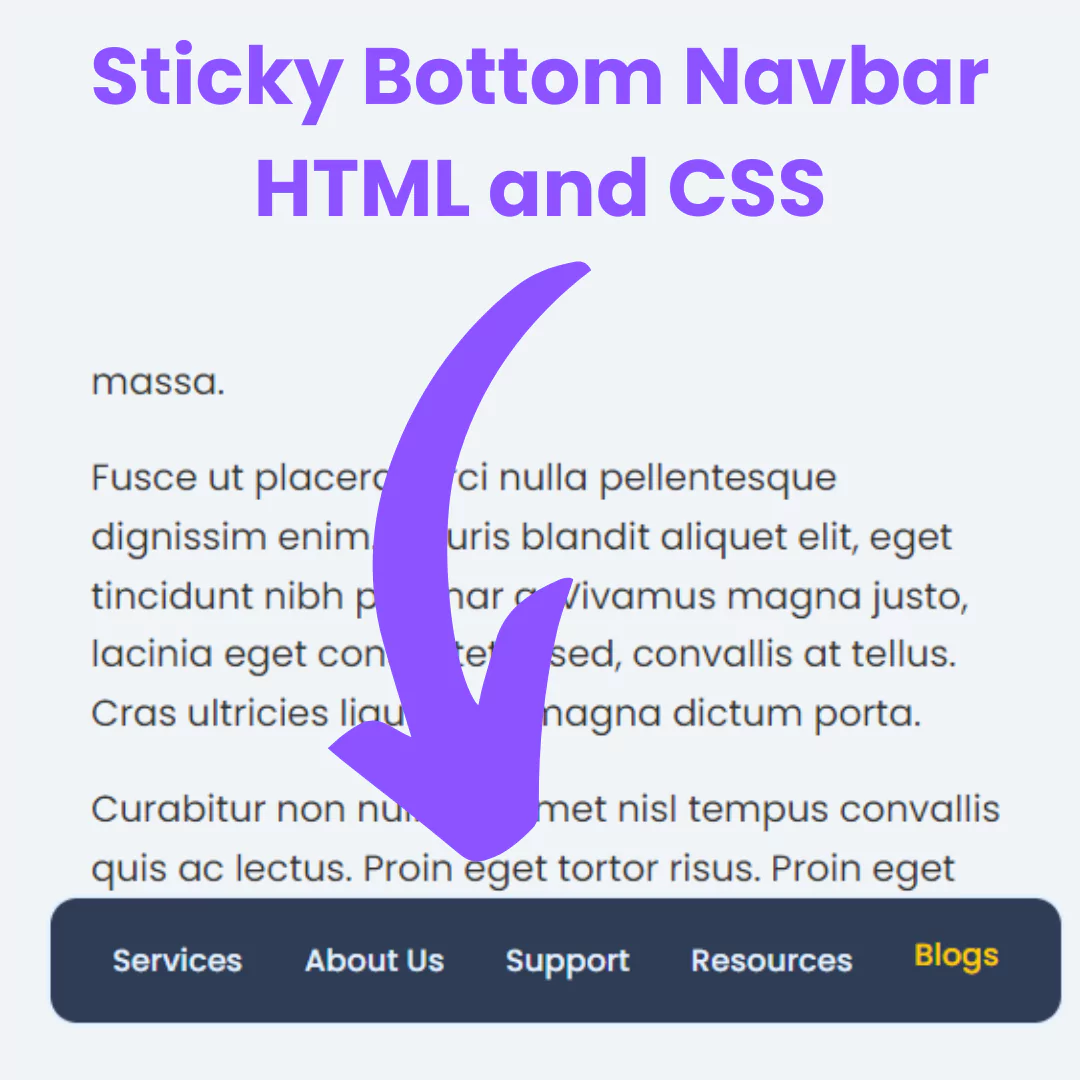
- Creating a sticky navigation bar
- Designing a product grid and carousels
- Adding a search bar
- Making a hero slider with JavaScript
- Adding a smooth back-to-top button
Let’s go step by step and build your own Amazon clone.
Prerequisites
Before you start, make sure you know:
- HTML basics → headings, images, divs, input, and buttons
- CSS basics → colors, layouts, flexbox, grid, media queries
- JavaScript basics → functions, DOM, and events
- A text editor (VS Code is best)
- A browser (like Chrome or Firefox)
Source Code
Step 1 (HTML Code):
We will first start with HTML to create the structure of our Amazon Clone. HTML defines the layout of the website, including:
- Header and navigation bar
- Logo and search box
- Product display section
- Footer section
For styling, we will use Tailwind CSS, which allows us to quickly design modern layouts.
👉 Let’s break the HTML code step by step and place it inside the index.html file.
1. HTML Boilerplate
<!DOCTYPE html>
<html lang="en">
<head>
    <meta charset="UTF-8">
    <meta name="viewport" content="width=device-width, initial-scale=1.0">
    <title>Amazon 2025 Clone</title>
<!DOCTYPE html>→ Declares HTML5.<html lang="en">→ Sets page language to English.<meta charset="UTF-8">→ Supports all characters (UTF-8 encoding).<meta name="viewport"...>→ Ensures mobile responsiveness.<title>→ Sets the page title (browser tab).
2. External Libraries
<script src="https://cdn.tailwindcss.com"></script>
<link rel="stylesheet" href="https://cdnjs.cloudflare.com/ajax/libs/font-awesome/6.5.1/css/all.min.css">
<link rel="stylesheet" href="styles.css">- TailwindCSS → For utility-first CSS styling.
- Font Awesome → For icons (shopping cart, map marker, etc.).
- styles.css → Custom styles file.
3. <body> Layout
<body class="bg-gray-100">- Background color set to light gray.
4. Header Section
(a) Top Navigation Bar
<div class="flex items-center bg-[#131921] text-white p-1">- Dark Amazon-style nav bar with flexbox.
Includes:
1. Amazon Logo
<img src="amazon_PNG11.png" alt="Amazon Logo">2. Deliver to (location section)
<i class="fas fa-map-marker-alt"></i> Mumbai 4000013. Search Bar with AI icon
- Dropdown (All)
- Search input
- AI magic wand icon
- Search button 🔍
4. Right-side Links
- Sign in / Account & Lists
- Returns & Orders
- Shopping Cart
(b) Bottom Navigation Bar
<div class="flex items-center bg-[#232F3E] text-white text-sm p-2 space-x-4">- Secondary menu bar:
All | Fresh | Amazon miniTV | Sell | Best Sellers | Mobiles | Today’s Deals | Electronics | Prime | Gift Ideas
Some links only show on medium/large screens (responsive).
5. Main Content
(a) Hero Section (Slider)
<div class="slider-container">
   <div class="slide active"><img src="..."></div>
   <div class="slide"><img src="..."></div>
   <div class="slide"><img src="..."></div>
   <button id="prevBtn">◀</button>
   <button id="nextBtn">▶</button>
</div>- Image carousel with navigation buttons.
- Background gradient at the bottom for fade effect.
(b) Product Grid (4 Columns)
<section class="grid grid-cols-1 sm:grid-cols-2 lg:grid-cols-4">- Card 1: Amazon Prime promotion.
- Card 2: Fashion (Women’s clothing, footwear, watches, jewellery).
- Card 3: Home appliances.
- Card 4: Sign-in card + ad image.
(c) Product Carousels
- Today’s Deals → Horizontally scrollable product list with discounts.
- Sustainable Finds → Eco-friendly products.
- Electronics Hub → Grid of discounted gadgets.
- Inspired by your browsing history → Personalized product suggestions with reviews & prices.
- Best Sellers in Books → Horizontal book list.
6. Footer Section
1. Personalized Recommendations
<p>See personalized recommendations</p>
<button>Sign in</button>
<p>New customer? Start here.</p>
2. Back to Top Button
<div id="backToTopBtn">Back to top</div>3. Footer Links Grid
- Get to Know Us
- Connect with Us
- Make Money with Us
- Let Us Help You
4. Copyright
<img src="amazon_PNG11.png">
<p>© 1996-2025, Amazon.com, Inc. or its affiliates</p>
7. JavaScript
<script src="script.js"></script>- External script file (handles slider and back-to-top button).

Step 2 (CSS Code):
After completing the HTML, we will move to CSS. While Tailwind CSS helps with basic styling, we will add custom CSS to make our Amazon Clone more attractive.
👉 Let’s break the CSS code step by step and place it inside the styles.css file.
1. Global Font Style
body {
  font-family: "Amazon Ember", Arial, sans-serif;
}- Sets the website’s font to Amazon Ember (if available).
- If not found, it falls back to Arial or any default sans-serif font.
2. Sticky Header
header {
  position: sticky;
  top: 0;
  z-index: 50;
}- Makes the
<header>stick to the top of the page while scrolling. - top: 0 → sticks at the very top.
- z-index: 50 → ensures it stays above other elements (like banners or images).
3. Navigation Link Border
.nav-link-border {
  border: 1px solid transparent;
  border-radius: 2px;
}
.nav-link-border:hover {
  border: 1px solid white;
}- By default, links with this class have a transparent border.
- On hover, the border becomes white, creating a subtle hover effect.
- border-radius: 2px → slightly rounded corners.
4. Search Bar Focus Effect
.search-focus:focus-within {
  box-shadow: 0 0 0 3px #F90, 0 0 0 5px #f0b87c;
  border-radius: 8px;
}- Applies styling when a search bar (or container) is focused (clicked/typed inside).
- Creates a glowing orange highlight effect using multiple box-shadow layers.
- Rounded corners with border-radius: 8px.
5. Custom Scrollbar for Carousels
.product-carousel::-webkit-scrollbar {
  height: 10px;
}
.product-carousel::-webkit-scrollbar-track {
  background: #e2e8f0;
  border-radius: 10px;
}
.product-carousel::-webkit-scrollbar-thumb {
  background: #a0aec0;
  border-radius: 10px;
  border: 2px solid #e2e8f0;
}
.product-carousel::-webkit-scrollbar-thumb:hover {
  background: #718096;
}- This only affects elements with the class .product-carousel.
- Customizes the horizontal scrollbar:
- Scrollbar height → 10px.
- Track (background area) → light gray with rounded corners.
- Thumb (the draggable part) → darker gray with a border.
- On hover, the thumb becomes even darker for better visibility.
6. Hero Slider Styles
.slider-container {
  position: relative;
  width: 100%;
  overflow: hidden;
}- Container for the hero slider.
- Ensures content stays inside the boundaries (overflow: hidden).
.slide {
  position: absolute;
  width: 100%;
  height: 100%;
  opacity: 0;
  transition: opacity 1s ease-in-out;
}
.slide.active {
  opacity: 1;
}- Each slide is stacked on top of the other (absolute positioning).
- By default, they are invisible (opacity: 0).
- The active slide fades in smoothly (opacity: 1 with transition).
.slide img {
  width: 100%;
  height: 100%;
  object-fit: cover;
}- Make sure images fill the slide area.
object-fit: cover → keeps proportions while covering the whole container.
7. Slider Buttons
.slider-btn {
  position: absolute;
  top: 40%;
  transform: translateY(-50%);
  background-color: rgba(255, 255, 255, 0.8);
  border: none;
  color: #131921;
  font-size: 1.5rem;
  padding: 1rem 1.25rem;
  cursor: pointer;
  z-index: 10;
  border-radius: 0.375rem;
  transition: background-color 0.2s;
}- Styles for the next/prev buttons on the slider:
- Positioned vertically centered (top: 40%, translateY(-50%)).
- Semi-transparent white background.
- Dark text color (#131921).
- Large clickable area (padding).
- Slightly rounded corners.
- Smooth background change on hover.
.slider-btn:hover {
  background-color: white;
}
.slider-btn.prev {
  left: 20px;
}
.slider-btn.next {
  right: 20px;
}- On hover → turns solid white.
.prevbutton is aligned to the left side of the slider..nextbutton is aligned to the right side.
body {
  font-family: "Amazon Ember", Arial, sans-serif;
}

header {
  position: sticky;
  top: 0;
  z-index: 50;
}

.nav-link-border {
  border: 1px solid transparent;
  border-radius: 2px;
}
.nav-link-border:hover {
  border: 1px solid white;
}

.search-focus:focus-within {
  box-shadow: 0 0 0 3px #F90, 0 0 0 5px #f0b87c;
  border-radius: 8px;
}

/* Custom scrollbar for carousels */
.product-carousel::-webkit-scrollbar {
  height: 10px;
}
.product-carousel::-webkit-scrollbar-track {
  background: #e2e8f0;
  border-radius: 10px;
}
.product-carousel::-webkit-scrollbar-thumb {
  background: #a0aec0;
  border-radius: 10px;
  border: 2px solid #e2e8f0;
}
.product-carousel::-webkit-scrollbar-thumb:hover {
  background: #718096;
}

/* Hero Slider Styles */
.slider-container {
  position: relative;
  width: 100%;
  overflow: hidden;
}
.slide {
  position: absolute;
  width: 100%;
  height: 100%;
  opacity: 0;
  transition: opacity 1s ease-in-out;
}
.slide.active {
  opacity: 1;
}
.slide img {
  width: 100%;
  height: 100%;
  object-fit: cover;
}
.slider-btn {
  position: absolute;
  top: 40%;
  transform: translateY(-50%);
  background-color: rgba(255, 255, 255, 0.8);
  border: none;
  color: #131921;
  font-size: 1.5rem;
  padding: 1rem 1.25rem;
  cursor: pointer;
  z-index: 10;
  border-radius: 0.375rem;
  transition: background-color 0.2s;
}
.slider-btn:hover {
  background-color: white;
}
.slider-btn.prev {
  left: 20px;
}
.slider-btn.next {
  right: 20px;
}
Step 3 (JavaScript Code):
Finally, we will use JavaScript to add functionality to our Amazon Clone. JavaScript will make the website interactive by controlling features like:
- Hero image slider
- Next and Previous buttons for carousel
- Smooth scroll to the top button
👉 Let’s break the JavaScript code step by step and write it inside the script.js file.
1. DOMContentLoaded
document.addEventListener('DOMContentLoaded', function () {- Runs the script only after the HTML is fully loaded (so elements exist in the DOM).
2. Hero Slider Setup
const slides = document.querySelectorAll('.slide');
const prevBtn = document.getElementById('prevBtn');
const nextBtn = document.getElementById('nextBtn');
let currentSlide = 0;
let slideInterval;- slides → gets all elements with class
.slide(the images/slides). - prevBtn / nextBtn → navigation buttons.
- currentSlide = 0 → starts from the first slide.
- slideInterval → will hold the automatic slideshow timer.
3. Show a Specific Slide
function showSlide(index) {
  slides.forEach((slide, i) => {
    slide.classList.remove('active'); // hide all
    if (i === index) {
      slide.classList.add('active'); // show only the selected one
    }
  });
}- Removes the active class from all slides.
- Adds active only to the slide with the given index.
- The CSS you showed earlier makes
.activeslide visible (opacity: 1).
4. Navigation Functions
function nextSlide() {
  currentSlide = (currentSlide + 1) % slides.length;
  showSlide(currentSlide);
}- Moves to the next slide.
- %
slides.lengthensures it loops back to the first slide after the last one.
function prevSlide() {
  currentSlide = (currentSlide - 1 + slides.length) % slides.length;
  showSlide(currentSlide);
}- Moves to the previous slide.
- Adding +
slides.lengthavoids negative indexes, then % keeps it within range.
5. Slideshow Auto-Play
function startSlideShow() {
  slideInterval = setInterval(nextSlide, 5000); // every 5 sec
}- Automatically moves to the next slide every 5 seconds.
function stopSlideShow() {
  clearInterval(slideInterval);
}- Stops the auto-play.
6. Button Click Events
nextBtn.addEventListener('click', () => {
  nextSlide();
  stopSlideShow();
  startSlideShow();
});

prevBtn.addEventListener('click', () => {
  prevSlide();
  stopSlideShow();
  startSlideShow();
});- When the user clicks next/prev:
- Move to the next/previous slide.
- Restart slideshow → ensures timer resets so it won’t instantly jump again.
7. Initialize Slider
showSlide(currentSlide); // show first slide
startSlideShow(); // start autoplay- Displays the first slide.
- Starts the auto slideshow immediately.
8. Back to Top Button
const backToTopBtn = document.getElementById('backToTopBtn');
backToTopBtn.addEventListener('click', () => {
  window.scrollTo({
    top: 0,
    behavior: 'smooth',
  });
});- Gets the Back to Top button.
- On click → smoothly scrolls the page back to the top.
document.addEventListener('DOMContentLoaded', function () {
  // Hero Slider Logic
  const slides = document.querySelectorAll('.slide');
  const prevBtn = document.getElementById('prevBtn');
  const nextBtn = document.getElementById('nextBtn');
  let currentSlide = 0;
  let slideInterval;

  function showSlide(index) {
    slides.forEach((slide, i) => {
      slide.classList.remove('active');
      if (i === index) {
        slide.classList.add('active');
      }
    });
  }

  function nextSlide() {
    currentSlide = (currentSlide + 1) % slides.length;
    showSlide(currentSlide);
  }

  function prevSlide() {
    currentSlide = (currentSlide - 1 + slides.length) % slides.length;
    showSlide(currentSlide);
  }

  function startSlideShow() {
    slideInterval = setInterval(nextSlide, 5000); // Change slide every 5 seconds
  }

  function stopSlideShow() {
    clearInterval(slideInterval);
  }

  nextBtn.addEventListener('click', () => {
    nextSlide();
    stopSlideShow();
    startSlideShow();
  });

  prevBtn.addEventListener('click', () => {
    prevSlide();
    stopSlideShow();
    startSlideShow();
  });

  showSlide(currentSlide);
  startSlideShow();

  // Back to Top button
  const backToTopBtn = document.getElementById('backToTopBtn');
  backToTopBtn.addEventListener('click', () => {
    window.scrollTo({
      top: 0,
      behavior: 'smooth',
    });
  });
});
Final Output:


Conclusion:
Building an Amazon Clone using HTML, CSS, and JavaScript is one of the best beginner projects. It teaches you how e-commerce websites are designed with navigation, sliders, and product displays.
This project is simple, fun, and improves your coding skills. Once you finish, you can add more features like login pages, product details, and a shopping cart with JavaScript.
Start today, and step by step, you’ll have your own mini Amazon clone ready
That’s a wrap!
I hope you enjoyed this post. Now, with these examples, you can create your own amazing page.
Did you like it? Let me know in the comments below 🔥 and you can support me by buying me a coffee
And don’t forget to sign up to our email newsletter so you can get useful content like this sent right to your inbox!
Thanks!
Faraz 😊