Learn how to create a smooth and modern React carousel using Framer Motion. Simple steps, responsive design, and animation to boost your React projects.


A carousel is a popular UI component used to show images, content, or items in a sliding layout. It is often used in homepages, portfolios, and product showcases.
In this blog, we’ll learn how to create a beautiful and responsive React carousel using Framer Motion, a powerful animation library for React. With Framer Motion, you can add smooth transitions and effects that make your carousel look more modern and interactive.
We will use simple code, clear steps, and responsive design using Tailwind CSS.
Setup Environment for React Carousel
Follow these simple steps to set up your project:
Step 1: Install Node.js and npm
Make sure Node.js is installed on your system. You can check it by running:
node -v
npm -v
If not installed, download it from https://nodejs.org.
Step 2: Create React App using Vite (Fast Setup)
Open terminal and run:
npm create vite@latest react-carousel --template reactFollow the prompts:
- Select React as framework
- Choose JavaScript as variant
Then move to your project folder:
cd react-carousel
npm install
Run the development server:
npm run devNow visit http://localhost:5173 in your browser.
Step 3: Install Framer Motion
Install Framer Motion with npm:
npm install framer-motionStep 4: Add Tailwind CDN
Open index.html in your public folder (or root in Vite) and add inside <head>:
<script src="https://cdn.jsdelivr.net/npm/@tailwindcss/browser@4"></script>Remove Unused CSS Files (src/assets/App.css & src/assets/Index.css)
Since we're using 100% Tailwind CSS via CDN, you can safely delete the default App.css and Index.css files to keep your project clean and lightweight.
Step-by-Step Guide to Create React Carousel
Replace src/App.jsx Code
import React, { useState, useEffect, useRef } from 'react';
import { motion, AnimatePresence } from 'framer-motion';

// Main App component
const App = () => {
  // Sample data for carousel slides
  const slides = [
    {
      id: 1,
      image: 'https://www.codewithfaraz.com/img/create%20rock%20paper%20scissors%20game%20with%20html,%20css,%20and%20javascript.jpg', // Softer green
      title: 'Rock Paper Scissors Game',
      subtitle: 'Create Rock Paper Scissors Game with HTML, CSS, and JavaScript.',
      buttonText: 'Explore Solutions',
      bgColor: 'bg-gradient-to-br from-blue-50 to-indigo-100', // Soft blue/indigo
      textColor: 'text-gray-800'
    },
    {
      id: 2,
      image: 'https://www.codewithfaraz.com/img/create-chatgpt-ui-clone-with-html-css-and-javascript.webp', // Softer red
      title: 'ChatGPT UI Clone',
      subtitle: 'Create ChatGPT UI Clone with HTML, CSS & JavaScript.',
      buttonText: 'Learn More',
      bgColor: 'bg-gradient-to-br from-pink-50 to-purple-100', // Soft pink/purple
      textColor: 'text-gray-800'
    },
    {
      id: 3,
      image: 'https://www.codewithfaraz.com/img/create-infographic-template-using-html-and-css.webp', // Softer blue
      title: 'Infographic Template',
      subtitle: 'Create Infographic Template Using HTML and CSS.',
      buttonText: 'Learn More',
      bgColor: 'bg-gradient-to-br from-green-50 to-teal-100', // Soft green/teal
      textColor: 'text-gray-800'
    },
    {
      id: 4,
      image: 'https://www.codewithfaraz.com/img/create-about-us-page-layout-using-html-and-css.webp', // Softer yellow
      title: 'About Us Page',
      subtitle: 'Create About Us Page Layout Using HTML and CSS.',
      buttonText: 'Learn More',
      bgColor: 'bg-gradient-to-br from-yellow-50 to-orange-100', // Soft yellow/orange
      textColor: 'text-gray-800'
    },
  ];

  const [currentIndex, setCurrentIndex] = useState(0);
  const [isPaused, setIsPaused] = useState(false);
  const autoplayRef = useRef(null);
  const [direction, setDirection] = useState(0); // 0 for initial, 1 for next, -1 for prev

  // Auto-play functionality
  useEffect(() => {
    if (!isPaused) {
      autoplayRef.current = setInterval(() => {
        setDirection(1); // Assume forward for autoplay
        setCurrentIndex((prevIndex) => (prevIndex + 1) % slides.length);
      }, 5000); // Change slide every 5 seconds
    }

    return () => {
      if (autoplayRef.current) {
        clearInterval(autoplayRef.current);
      }
    };
  }, [currentIndex, isPaused, slides.length]);

  // Handle next slide
  const goToNext = () => {
    setDirection(1);
    setCurrentIndex((prevIndex) => (prevIndex + 1) % slides.length);
    setIsPaused(true); // Pause on manual navigation
    setTimeout(() => setIsPaused(false), 3000); // Resume after 3 seconds
  };

  // Handle previous slide
  const goToPrevious = () => {
    setDirection(-1);
    setCurrentIndex((prevIndex) => (prevIndex - 1 + slides.length) % slides.length);
    setIsPaused(true); // Pause on manual navigation
    setTimeout(() => setIsPaused(false), 3000); // Resume after 3 seconds
  };

  // Handle pagination dot click
  const goToSlide = (index) => {
    setDirection(index > currentIndex ? 1 : -1);
    setCurrentIndex(index);
    setIsPaused(true); // Pause on manual navigation
    setTimeout(() => setIsPaused(false), 3000); // Resume after 3 seconds
  };

  // Pause auto-play on hover
  const handleMouseEnter = () => {
    setIsPaused(true);
    if (autoplayRef.current) {
      clearInterval(autoplayRef.current);
    }
  };

  // Resume auto-play on mouse leave
  const handleMouseLeave = () => {
    setIsPaused(false);
  };

  // Framer Motion variants for slide animation
  const slideVariants = {
    enter: (direction) => ({
      x: direction > 0 ? '100%' : '-100%',
      opacity: 0,
      scale: 0.95, // Softer scale change
    }),
    center: {
      x: 0,
      opacity: 1,
      scale: 1,
      transition: {
        x: { type: 'spring', stiffness: 300, damping: 30 },
        opacity: { duration: 0.4 },
        scale: { duration: 0.4 },
      },
    },
    exit: (direction) => ({
      x: direction < 0 ? '100%' : '-100%',
      opacity: 0,
      scale: 0.95, // Softer scale change
      transition: {
        x: { type: 'spring', stiffness: 300, damping: 30 },
        opacity: { duration: 0.2 },
        scale: { duration: 0.2 },
      },
    }),
  };

  // Variants for individual elements within the slide
  const contentVariants = {
    hidden: { opacity: 0, y: 20 },
    visible: { opacity: 1, y: 0, transition: { duration: 0.6, ease: "easeOut" } },
  };
  const imageVariants = {
    hidden: { opacity: 0, scale: 0.9 }, // Softer initial scale
    visible: { opacity: 1, scale: 1, transition: { duration: 0.7, ease: "easeOut" } },
  };


  return (
    <div className="min-h-screen bg-[#825CFF] flex items-center justify-center p-4 sm:p-6 font-inter text-gray-800">
      <motion.div
        className="relative w-full max-w-5xl mx-auto bg-white rounded-3xl shadow-xl overflow-hidden border border-gray-200"
        onMouseEnter={handleMouseEnter}
        onMouseLeave={handleMouseLeave}
        // Animate carousel container on viewport entry
        initial={{ opacity: 0, y: 50, scale: 0.98 }} // Softer initial scale
        whileInView={{ opacity: 1, y: 0, scale: 1 }}
        viewport={{ once: true, amount: 0.3 }}
        transition={{ duration: 0.8, ease: "easeOut" }}
      >
        <div className="relative h-[400px] sm:h-[500px] flex items-center justify-center">
          <AnimatePresence initial={false} custom={direction}>
            <motion.div
              key={currentIndex} // Key is crucial for AnimatePresence to detect changes
              custom={direction}
              variants={slideVariants}
              initial="enter"
              animate="center"
              exit="exit"
              className="absolute inset-0 flex items-center justify-center p-6"
            >
              {/* Updated Layout: Image and Content side-by-side with more distinct sections */}
              <div className={`w-full h-full flex flex-col sm:flex-row rounded-2xl shadow-lg overflow-hidden ${slides[currentIndex].bgColor}`}>
                {/* Image Section - now takes up more space on larger screens, and has more padding */}
                <motion.div
                  className="w-full sm:w-3/5 h-1/2 sm:h-full flex items-center justify-center p-6" // Increased width and padding
                  variants={imageVariants}
                  initial="hidden"
                  animate="visible"
                >
                  <img
                    src={slides[currentIndex].image}
                    alt={slides[currentIndex].title}
                    className="object-cover w-full h-full rounded-xl shadow-md border border-gray-100"
                    onError={(e) => {
                      e.target.onerror = null; // Prevent infinite loop
                      e.target.src = `https://placehold.co/600x400/FF0000/FFFFFF?text=Image+Error`;
                    }}
                  />
                </motion.div>

                {/* Content Section - now takes up less space but has more focused content area */}
                <div className={`w-full sm:w-2/5 h-1/2 sm:h-full flex flex-col items-center justify-center p-6 text-center ${slides[currentIndex].textColor}`}>
                  <motion.h2
                    className="text-3xl sm:text-4xl font-extrabold mb-3 drop-shadow-sm"
                    variants={contentVariants}
                    initial="hidden"
                    animate="visible"
                  >
                    {slides[currentIndex].title}
                  </motion.h2>
                  <motion.p
                    className="text-lg sm:text-xl text-opacity-80 mb-6 max-w-md"
                    variants={contentVariants}
                    initial="hidden"
                    animate="visible"
                    transition={{ delay: 0.1, ...contentVariants.visible.transition }}
                  >
                    {slides[currentIndex].subtitle}
                  </motion.p>
                  <motion.button
                    className="px-8 py-4 bg-white text-blue-600 font-bold rounded-full shadow-md hover:shadow-lg transition-all duration-300 ease-in-out transform hover:-translate-y-0.5"
                    whileHover={{ scale: 1.02, backgroundColor: "#E0F2FE", color: "#1D4ED8" }}
                    whileTap={{ scale: 0.98 }}
                    variants={contentVariants}
                    initial="hidden"
                    animate="visible"
                    transition={{ delay: 0.2, ...contentVariants.visible.transition }}
                  >
                    {slides[currentIndex].buttonText}
                  </motion.button>
                </div>
              </div>
            </motion.div>
          </AnimatePresence>
        </div>

        {/* Navigation Buttons */}
        <motion.button
          onClick={goToPrevious}
          className="absolute top-1/2 left-6 -translate-y-1/2 bg-white bg-opacity-70 p-4 rounded-full shadow-md hover:bg-opacity-90 transition-all duration-300 focus:outline-none focus:ring-4 focus:ring-blue-100 focus:ring-opacity-70 z-20"
          aria-label="Previous slide"
          whileHover={{ scale: 1.05, x: -3 }}
          whileTap={{ scale: 0.95 }}
        >
          <svg
            xmlns="http://www.w3.org/2000/svg"
            className="h-7 w-7 text-gray-700"
            fill="none"
            viewBox="0 0 24 24"
            stroke="currentColor"
          >
            <path
              strokeLinecap="round"
              strokeLinejoin="round"
              strokeWidth={2}
              d="M15 19l-7-7 7-7"
            />
          </svg>
        </motion.button>
        <motion.button
          onClick={goToNext}
          className="absolute top-1/2 right-0 -translate-y-1/2 bg-white bg-opacity-70 p-4 rounded-full shadow-md hover:bg-opacity-90 transition-all duration-300 focus:outline-none focus:ring-4 focus:ring-blue-100 focus:ring-opacity-70 z-20"
          aria-label="Next slide"
          whileHover={{ scale: 1.05, x: 3 }}
          whileTap={{ scale: 0.95 }}
        >
          <svg
            xmlns="http://www.w3.org/2000/svg"
            className="h-7 w-7 text-gray-700"
            fill="none"
            viewBox="0 0 24 24"
            stroke="currentColor"
          >
            <path
              strokeLinecap="round"
              strokeLinejoin="round"
              strokeWidth={2}
              d="M9 5l7 7-7 7"
            />
          </svg>
        </motion.button>

        {/* Pagination Dots */}
        <div className="absolute bottom-7 left-1/2 -translate-x-1/2 flex space-x-3 z-20">
          {slides.map((_, index) => (
            <motion.button
              key={index}
              onClick={() => goToSlide(index)}
              className={`relative w-4 h-4 rounded-full transition-all duration-300 ease-in-out ${
                index === currentIndex ? 'bg-blue-500 w-8' : 'bg-gray-300'
              }`}
              whileHover={{ scale: 1.2, backgroundColor: index === currentIndex ? '#3B82F6' : '#D1D5DB' }}
              whileTap={{ scale: 0.95 }}
              aria-label={`Go to slide ${index + 1}`}
            >
              {index === currentIndex && (
                <motion.span
                  className="absolute inset-0 rounded-full bg-blue-500 opacity-30"
                  initial={{ scale: 0 }}
                  animate={{ scale: 1 }}
                  transition={{ type: "spring", stiffness: 500, damping: 30 }}
                />
              )}
            </motion.button>
          ))}
        </div>
      </motion.div>
    </div>
  );
};

export default App;
Run Your App
Go to your terminal:
npm run devOpen http://localhost:5173/ and see your carousel.
Conclusion
Creating a React carousel with Framer Motion is easy and fun. With just a few lines of code, you can build a responsive and animated slider that enhances the user experience of your website or app.
By using Framer Motion, you get powerful animation features without needing complex code. Combine it with Tailwind CSS for fast and beautiful designs.
Key Benefits
- Smooth slide animations
- Simple and clean code
- Responsive for all devices
- Easily customizable
Now it’s your turn to try it!
If you liked this guide, don’t forget to share it with other developers and explore more React + Framer Motion tutorials.

That’s a wrap!
I hope you enjoyed this article
Did you like it? Let me know in the comments below 🔥 and you can support me by buying me a coffee.
And don’t forget to sign up to our email newsletter so you can get useful content like this sent right to your inbox!
Thanks!
Faraz 😊
Subscribe to my Newsletter
Get the latest posts delivered right to your inbox
Latest Components

Free HTML News Website Landing Page Code Snippet: Modern & Responsive
by Faraz - April 21, 2026Download a free, high-performance HTML news website landing page template. Built with Tailwind CSS and JavaScript, this "Newstant" template is optimized for corporate news and business intelligence portals.


Modern Responsive Header with Search Bar: Free HTML, CSS, & JS Code Snippet
February 02, 2026


Animated Login Buttons with HTML, CSS & JavaScript
by Faraz - August 25, 2025Learn how to create animated login buttons using HTML, CSS, and JavaScript. Step-by-step guide for stylish and interactive login buttons.




Create Neon Brick Breaker Game using HTML CSS JS
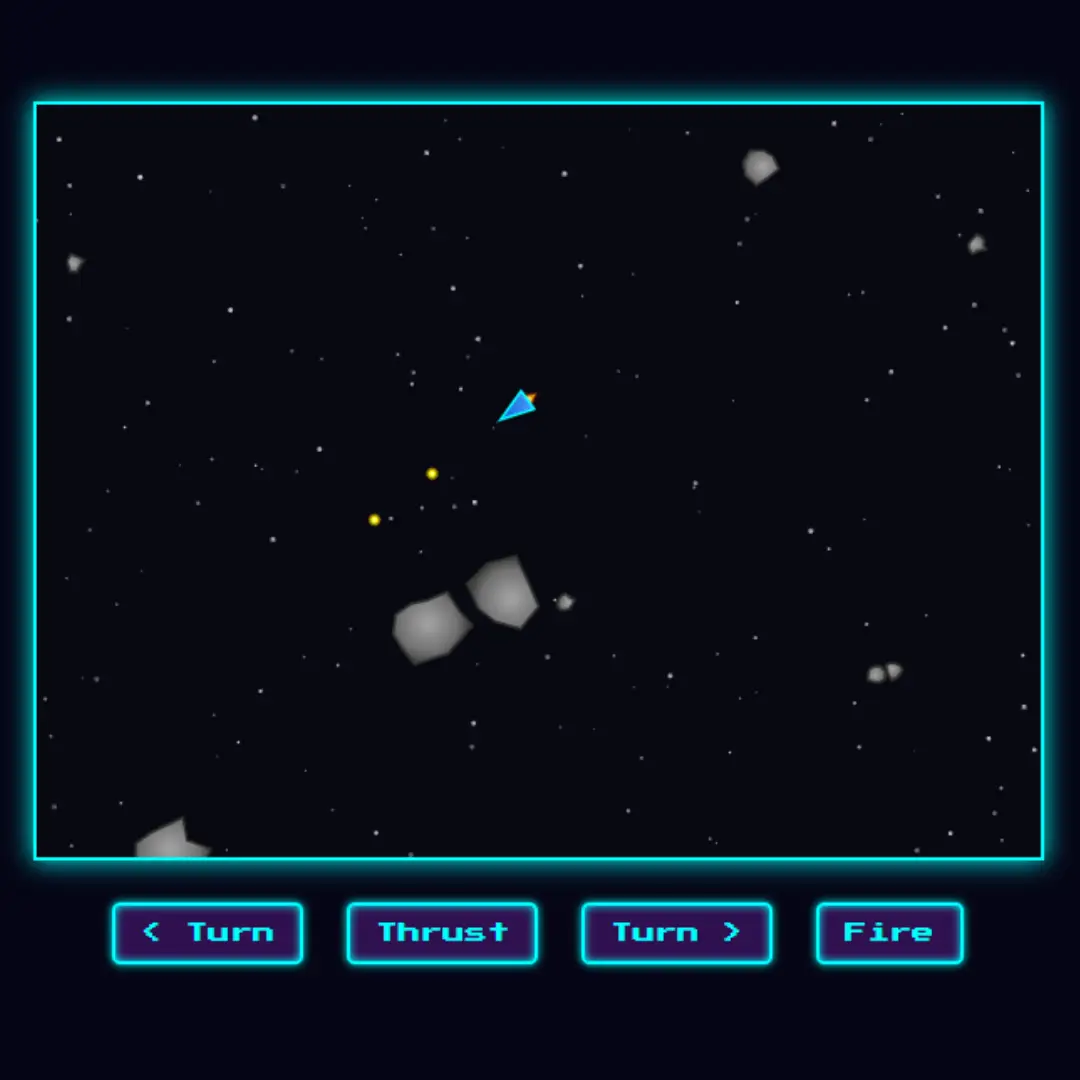
by Faraz - April 05, 2025Learn how to create a Neon Brick Breaker game using HTML, CSS, and JavaScript. Simple steps for beginners to build a glowing arcade-style game.


Build a Password Generator with HTML, CSS & JS - Easy Guide
by Faraz - October 08, 2025Learn how to make a random password generator using HTML, CSS, and JavaScript. This beginner tutorial includes step-by-step code and tips for strong passwords. Start coding today!


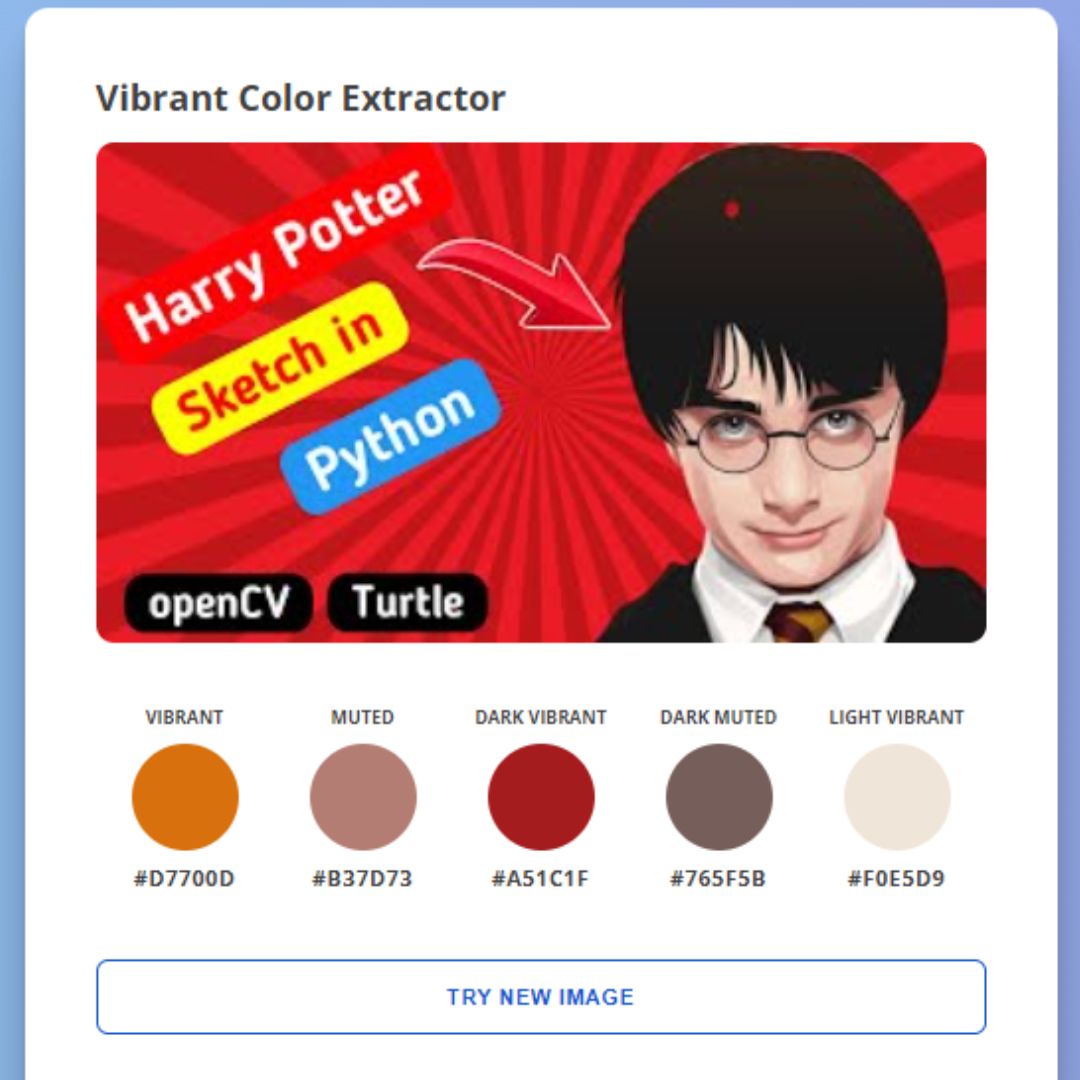
Create Image Color Extractor Tool using HTML, CSS, JavaScript, and Vibrant.js
January 23, 2024
Create Sticky Bottom Navbar using HTML and CSS
by Faraz - August 29, 2024Learn how to create a sticky bottom navbar using HTML and CSS with this easy-to-follow guide.